
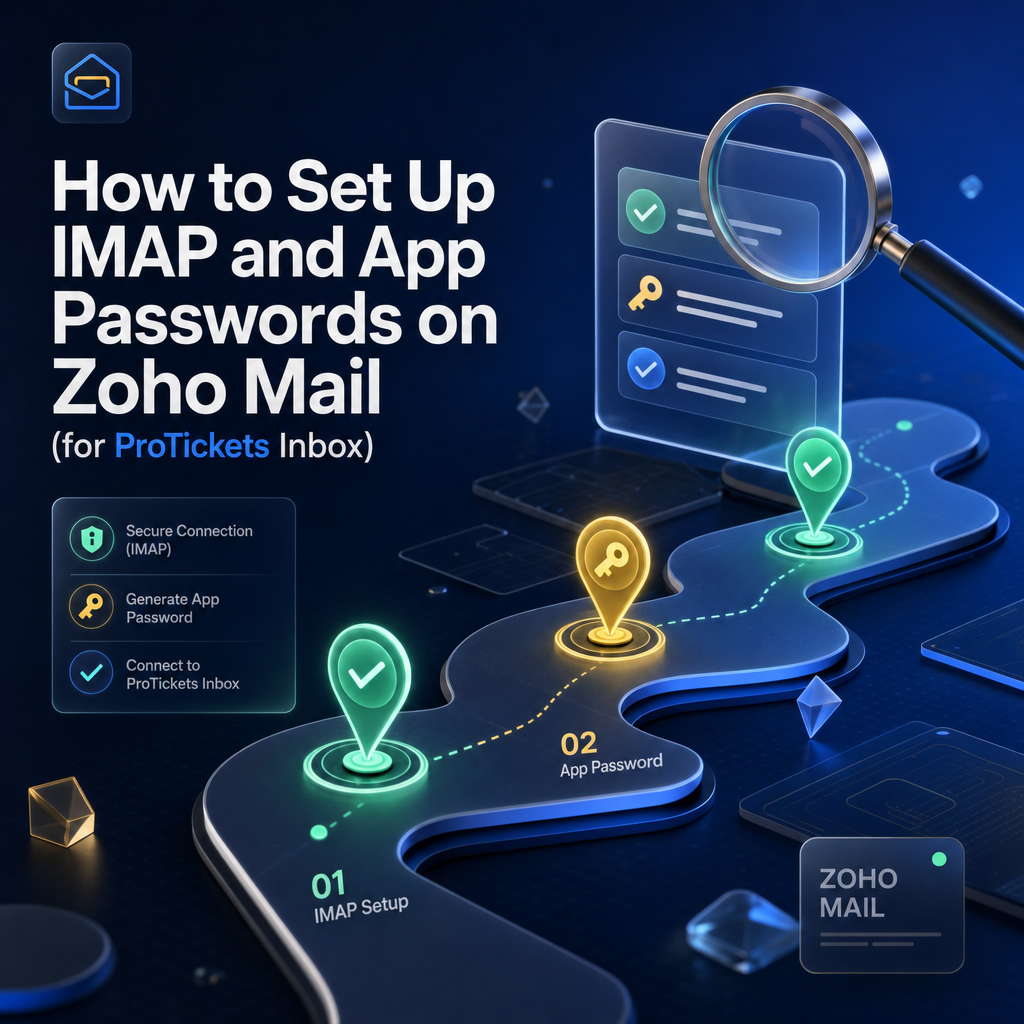
ProTickets supports Zoho Mail right alongside Gmail, which is handy because many brokers run their buyer accounts on Zoho. To connect a Zoho mailbox to the ProTickets Inbox you need two-factor authentication, an application-specific password, and IMAP turned on. Here is the full setup.
Zoho IMAP Settings
ProTickets detects your Zoho region from your email address and fills these in automatically, but for reference:
- IMAP server: imap.zoho.com (global). Regional data centers include imap.zoho.eu (Europe), imap.zoho.in (India), imap.zoho.com.au (Australia), imap.zohocloud.ca (Canada), imap.zoho.jp (Japan), imap.zoho.sa (Saudi Arabia), and imap.zoho.com.cn (China).
- Port: 993
- Security: SSL/TLS
- Username: your full Zoho email address
- Password: your Zoho application-specific password
ProTickets picks the right server from your email ending: a .eu address routes to imap.zoho.eu, .in to imap.zoho.in, and so on, so you do not have to think about it.
Step 1: Enable Two-Factor Authentication
- Sign in at accounts.zoho.com and open Security.
- Find Multi-Factor Authentication (also called Two-Factor Authentication).
- Choose a method, such as Zoho OneAuth or an authenticator app, and follow the prompts to enable it.
Step 2: Generate an Application-Specific Password
This is the password ProTickets uses to read the mailbox. It is separate from your login password.
- In accounts.zoho.com, go to Security, then App Passwords.
- Click Generate New Password.
- Give it a name like "ProTickets Inbox" and confirm.
- Copy the generated password. Zoho shows it once, so keep it handy for the next step.
Step 3: Turn On IMAP in Zoho Mail
- Open Zoho Mail and click the Settings gear.
- Go to Mail Accounts and select your account.
- Under IMAP Access, enable IMAP and save.
Step 4: Connect Zoho to the ProTickets Inbox
- Open the Inbox in ProTickets and go to the Emails tab.
- Click Add source and choose Zoho.
- Enter your full Zoho address and paste the app password from Step 2.
- Click Connect and validate. ProTickets routes to your Zoho region and confirms the login before saving.
- Click Sync to pull your messages.
If your generated buyer accounts already hold a Zoho email and app password, ProTickets can bridge them into the Inbox automatically on the next sync.
What the ProTickets Inbox Does With Your Zoho Mail
- Extracts codes automatically: verification and presale codes from the major ticketing platforms.
- Scans extra folders: it also checks Zoho's Notifications, Newsletters, and Spam folders, where codes sometimes get filed.
- Code-only: only messages with a code or link are kept, so your dashboard stays focused.
- Encrypted: your app password is stored with AES-256 encryption and used only at sync time.
FAQ
Do I need a paid Zoho plan?
IMAP and app passwords are available on standard Zoho Mail accounts. As long as you can enable IMAP and generate an app password, ProTickets can connect.
Which Zoho server should I choose?
You do not have to choose. ProTickets reads the region from your email address ending and connects to the matching Zoho data center automatically.
Can I connect many Zoho mailboxes?
Yes. Add each mailbox as its own source, or let ProTickets auto-bridge the email accounts you have generated, then sync them all from one place.
Conclusion
Zoho Mail plus the ProTickets Inbox gives you a clean, automated pipeline for every code that hits your accounts. Set it up once, connect your mailboxes, and let ProTickets pull the codes the moment they arrive.
Related articles
Ready to become a ticket broker?
Join ProTickets and get access to pro-grade tools, live data, and insider strategies trusted by top resellers.
Get started for free